Hosting and public access
Start a service locally, host the port with Host to generate a public access URL, then simply open the URL in a browser.
Video demos
Scenario overview
Goal: start an HTTP service locally, host it through a DevBridge tunnel, get a public access URL, and access it directly in a browser.
You don't need to install the CLI or establish a Connect connection on another device — this is ideal for quickly sharing local development content.
Step 1: Start the local service
In terminal 1, start an HTTP service listening on port 8080:
python3 -m http.server 8080Once started, this terminal keeps running; the service listens on 0.0.0.0:8080 by default. Keep this terminal open.

Verify the service works:
curl http://127.0.0.1:8080If it returns a listing of the files in the current directory, the service is working.
Step 2: Start Host to host the port
There are two ways to run Host, depending on whether you reuse an existing tunnel.
Option 1: Use a temporary tunnel
If you don't have a reusable tunnel, let Host automatically create a temporary tunnel and host port 8080:
devbridge host -p 8080To set a description and expiration:
devbridge host -p 8080 -d "tunnel description" -e 8-p 8080: hosts local port8080.-d: tunnel description, optional.-e: expiration in hours, optional, defaults to 72 hours.
After Host succeeds, it prints the tunnel ID and access URL, in the following format:
https://<tunnelId>-<port>.devbridge-s2.hwtunnel.com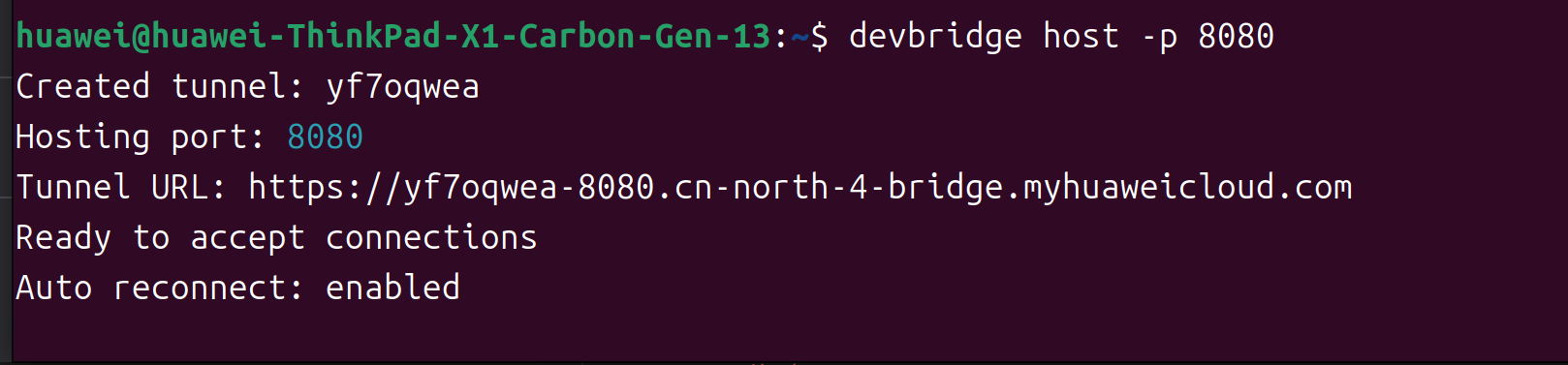
The image above shows the actual output of devbridge host -p 8080: it automatically creates tunnel yf7oqwea, hosts port 8080, and prints the corresponding tunnel URL.
Temporary tunnel lifecycle
A tunnel created by devbridge host -p 8080 is retained after you stop Host — it isn't deleted automatically. Clean it up with devbridge delete <tunnelId> when you no longer need it.
Option 2: Use an existing tunnel
Before reusing an existing tunnel, confirm that it exists and that port 8080 is already configured.
List the valid tunnels in the current workspace:
bashdevbridge listConfirm the target tunnel ID is in the list.
View the tunnel's port configuration:
bashdevbridge port list <tunnelId>Confirm port
8080already exists. If it doesn't, create it first:bashdevbridge port create <tunnelId> -p 8080 --protocol httpStart Host to host all the ports of that tunnel:
bashdevbridge host <tunnelId>Host loads all the ports configured in the tunnel and begins forwarding; you don't need to specify
-pagain.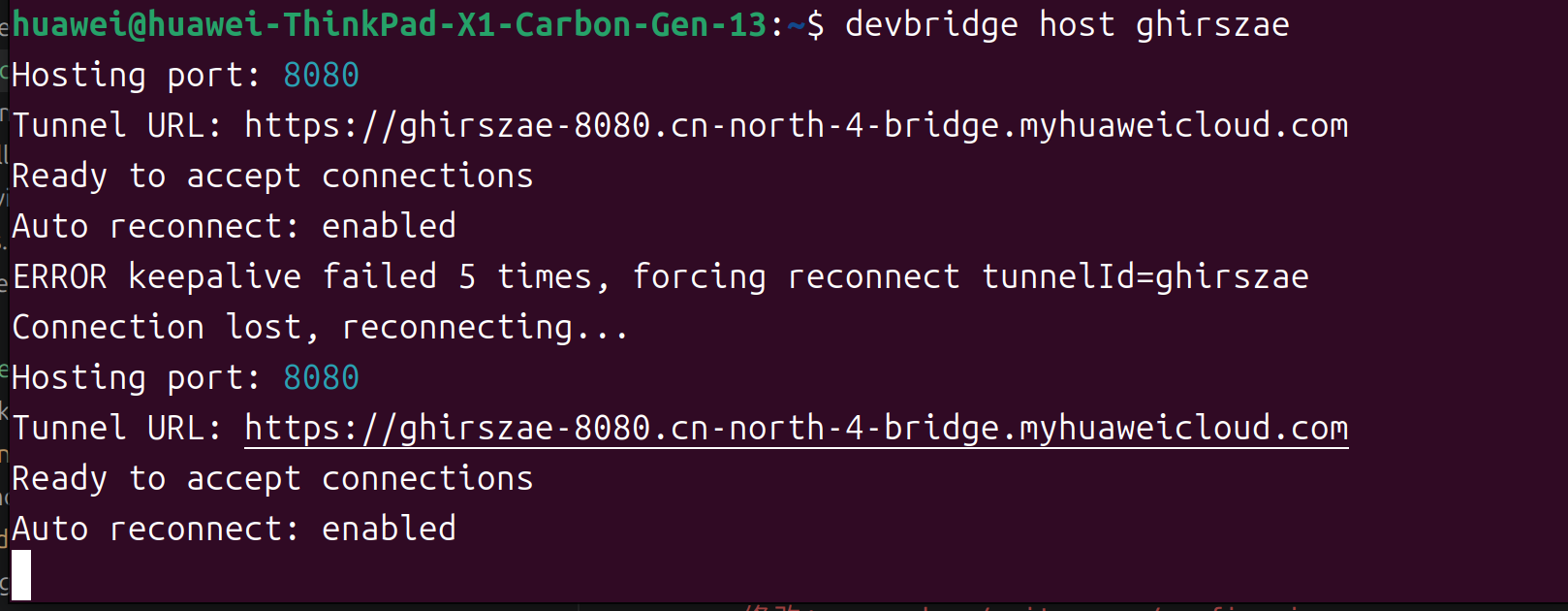
The image above shows the actual output of
devbridge host ghirszae: Host successfully hosts port8080and prints the tunnel URL; during the run it triggers an automatic reconnection and resumes forwarding after recovering.
Either way, Host keeps running in the foreground. Keep terminal 2 open; press Ctrl+C to stop hosting.
Step 3: Access the tunnel URL in a browser
The tunnel URL that Host prints looks like:
https://<tunnelId>-<port>.devbridge-s2.hwtunnel.comOpen the URL directly in a browser on any device to access the local service. The behavior depends on the port's anonymous-access policy:
| Port policy | Browser behavior |
|---|---|
Allows anonymous access (-a) | Open the URL directly to access it — no DevBridge identity or credentials required. |
| Denies anonymous access (default) | You're redirected to a sign-in page; complete authentication to obtain credentials, then you can access it. |
A port's anonymous-access policy is set at creation time with -a or --deny-anonymous. See Manage ports.
Quick reference
| Step | Terminal | Command | Description |
|---|---|---|---|
| 1 | Terminal 1 | python3 -m http.server 8080 | Start the local HTTP service. |
| 2 | Terminal 2 | devbridge host -p 8080 | Host with a temporary tunnel (Option 1). |
| 2 | Terminal 2 | devbridge host <tunnelId> | Host with an existing tunnel (Option 2). |
| 3 | Browser | https://<tunnelId>-<port>.devbridge-s2.hwtunnel.com | Access the tunnel URL directly. |
FAQ
Host exits immediately after starting
Confirm the local service in terminal 1 is still running. Host exits with an error when it detects that nothing is listening on the local port.
Browser access returns a sign-in page
When the port is configured to deny anonymous access, the browser redirects to a sign-in page. Complete authentication to access it, or use -a when creating the port to allow anonymous access.
Forgot the tunnel ID
To look it up:
devbridge listBoth temporary and persistent tunnels appear in the valid tunnel list.
Cleanup
After verification, stop things in this order:
- Press
Ctrl+Cin the Host terminal. - Press
Ctrl+Cin the service terminal to stoppython3 -m http.server.
A temporary tunnel isn't deleted automatically after you stop Host. Clean it up once you're sure you no longer need it:
devbridge delete <tunnelId>